Paying vendors
Pay vendors in one charge, get an itemized receipt, and handle late sales.
The Payments page is where money actually moves. It walks you through three steps: pick a month, choose who to pay, then confirm. Nothing is charged until the last step.
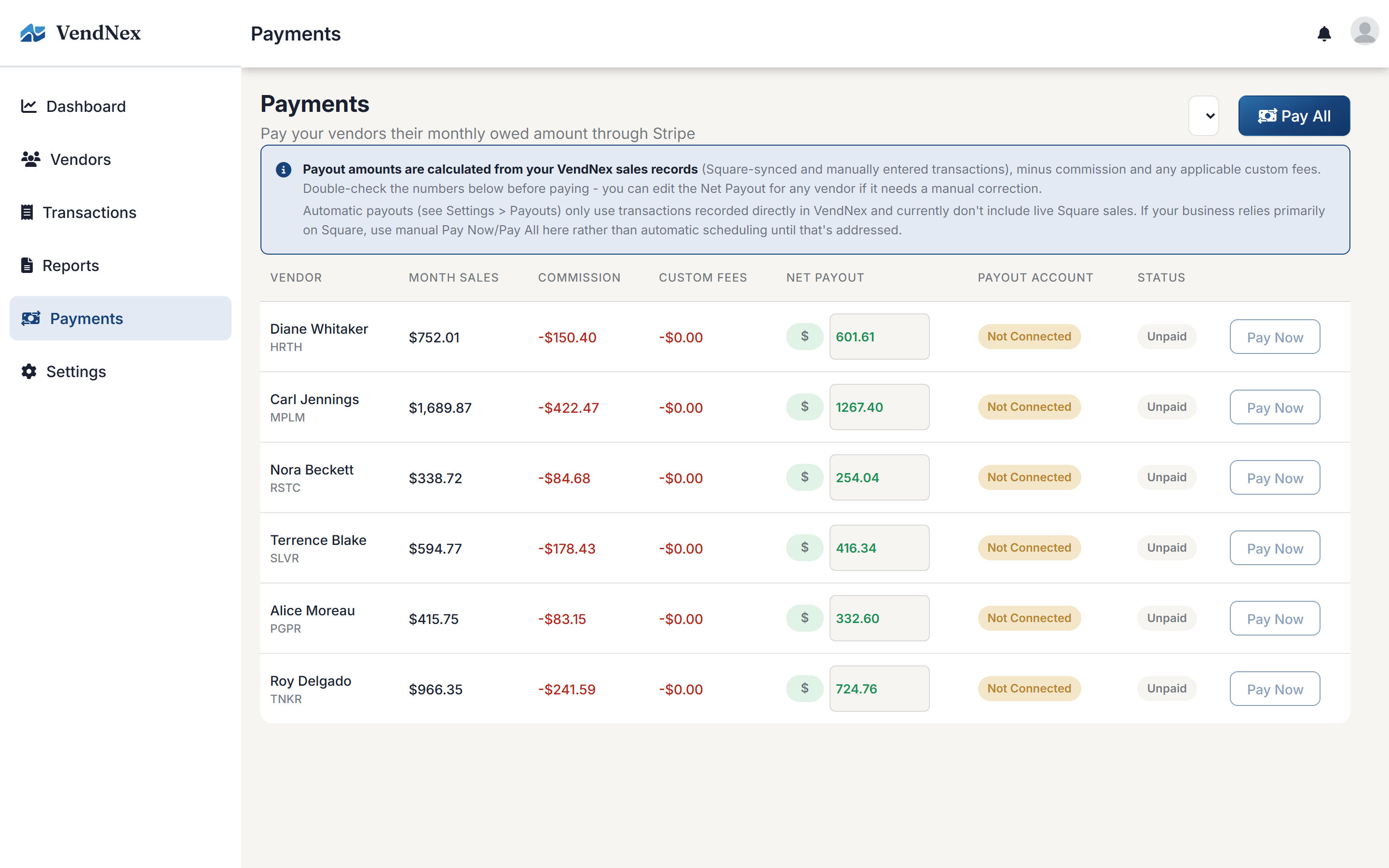
Before your first payment
- Add a card. Go to Settings → Payouts and click Add card. You enter it on Stripe's secure page, so VendNex never sees the number. Until a card is set, the Pay buttons are disabled and the Payments page tells you so. If you never set a separate payout card, your subscription card is used.
- Vendors connect a payout account. A vendor with no payout account shows No bank account and can't be selected. They connect it from their own portal — see Getting paid.
Step 1: pick a month
Each month is a card across the top showing what's left to do — Open until Sep 30, 2 to pay, All paid — and how many vendors have been paid. Click a month to see it.
A month can only be paid after it has ended, because sales are still coming in during it. Once it ends you can pay on any day you like; there is no deadline.
Step 2: choose who to pay
Every vendor is listed with their sales, commission, custom fees, and what they receive. The status tells you what you can do:
- Ready to pay — ticked by default. You can edit the They receive amount if you've agreed something different; Reset puts the calculated figure back.
- Paid · locked — already paid for this month. That month is locked for the vendor, so the same sales can't be paid twice.
- New sales — sales came in after you paid. See Late sales below.
- No bank account — the vendor hasn't connected a payout account yet. What they're owed is shown so you know.
- Below minimum — see Minimum amounts below.
- Nothing to pay — no sales, or fees were larger than their share.
Click Show math on any row to see exactly how the amount was worked out, including the fee added on top for you.
Step 3: confirm
The bar at the bottom shows how many vendors are selected and the single amount you'll be charged. Review and pay opens the confirm page with the full table, the total, and a checkbox you tick to confirm you've checked the amounts. Payment is sent as soon as you press Pay and can't be undone.
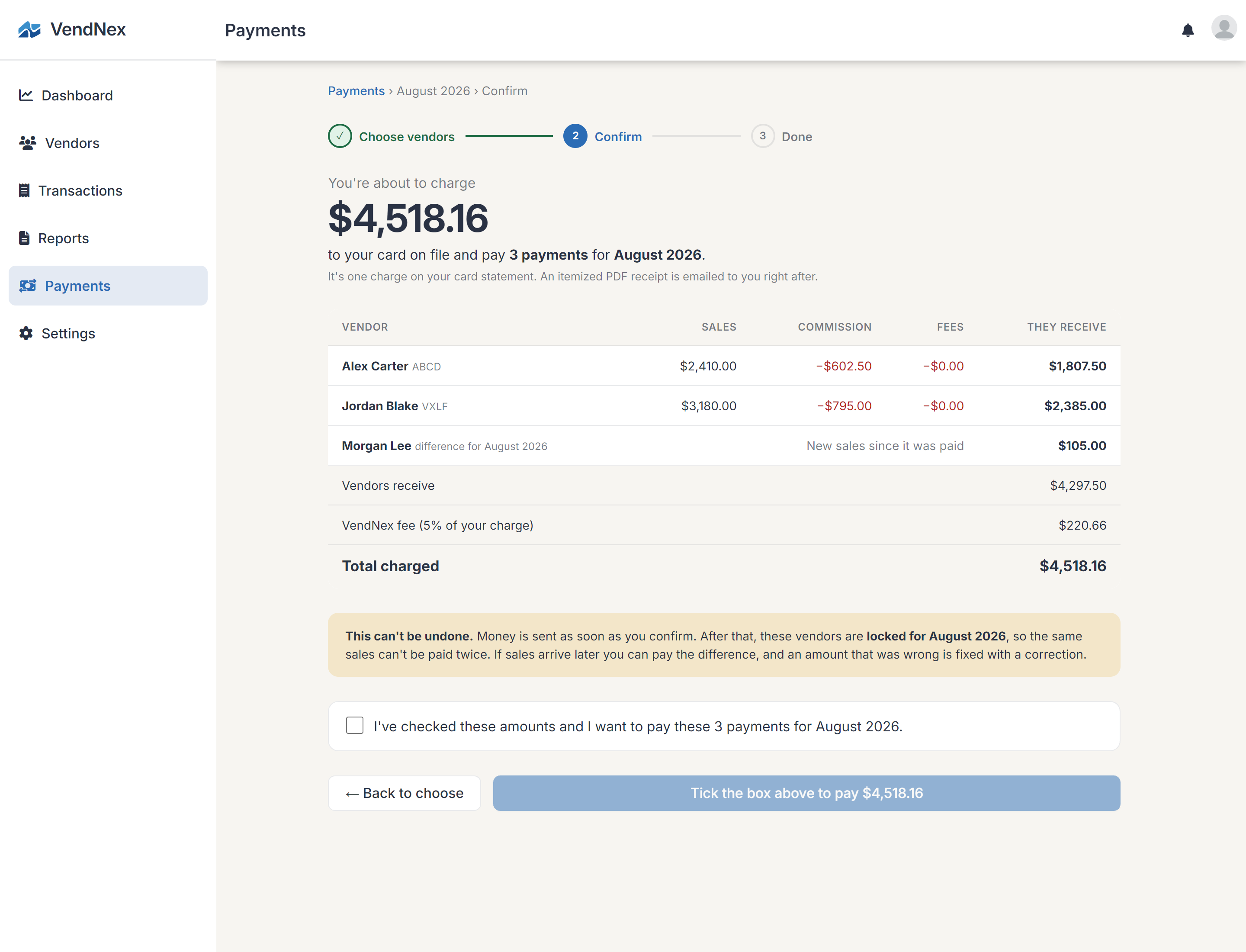
One charge, one receipt
Everyone you pay in a run is covered by one charge on your card, so your statement shows a single line. Right after, VendNex emails you an itemized PDF receipt listing each vendor's sales, commission, fees, and payment, plus anyone who wasn't paid and why. Receipts are also saved under Payment history at the bottom of the Payments page, where you can download them again.
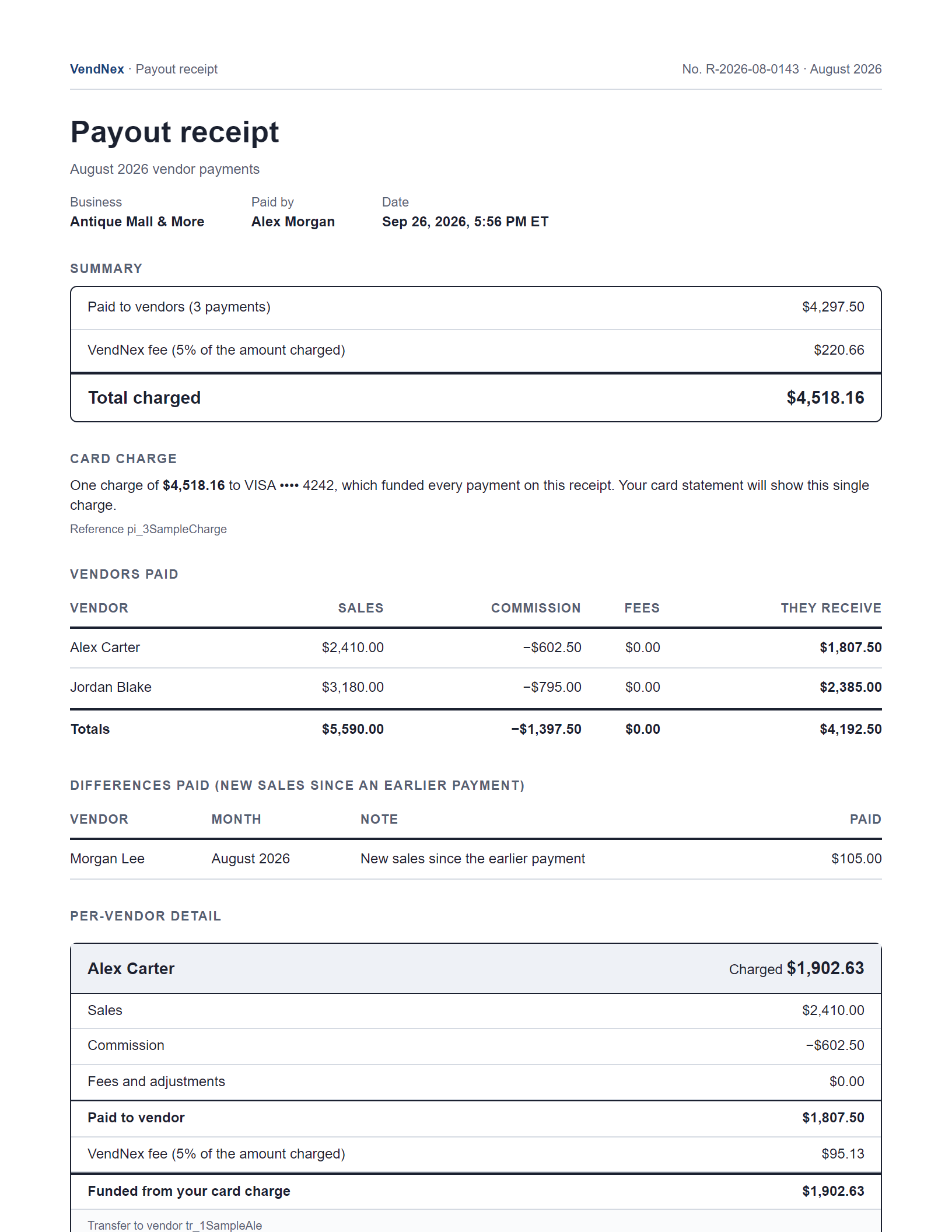
If your card is declined, nothing is paid and nothing is half-finished — fix the card and try again. In the rare case your card was charged but a transfer to a vendor failed, the page says so; press Pay again and only the transfer is retried, so you are never charged twice.
What a payout is based on
A vendor's payout is their item sales for the month, less your commission and custom fees. Card-only and cash-only custom fees are applied to the right sales, so a cash sale won't be charged a card fee.
If Settings → General → Tax Payout is set to Vendor, the sales tax collected on the vendor's items is added to what they receive. Click Show math to see it as its own line; vendors see it too, in their portal and on their monthly statement. Because that money is the vendor's to send to the government, not a sale, the 5% VendNex fee isn't charged on it. With Business selected, sales tax isn't part of the payout.
What it costs
VendNex adds a 5% platform fee on top of the vendors' payouts, charged to you. If vendors are owed $100 in total, you're charged $105 and they receive $100. If part of a payout is sales tax passed through to the vendor, the fee is worked out on the rest. The fee is shown on the confirm page and the receipt.
Late sales: paying the difference
If sales for a month arrive after you've paid a vendor (a late sync, a manual entry), that vendor shows New sales with the extra amount. Tick it and it is added to your next run — no fee is added to differences. The vendor's month stays locked; only the difference is sent.
Minimum amounts
Very small payments cost more to process than they earn, so there are two minimums:
- A vendor's payout for a month must be at least $5.00.
- A single payment run must total at least $20.00 charged to your card.
Below either one, the page tells you why and disables the button. Amounts under the vendor minimum aren't carried into the next month automatically.
Automatic payouts
In Settings → Payouts you can switch from manual to automatic and pick a day of the month. On that day, connected vendors with an unpaid balance from the previous month are paid in one charge and you get the same receipt. The same minimums apply.
Two things worth knowing. Automatic payouts require a Professional plan or higher — Basic is manual only. And they work from all of your sales: ones you entered by hand, plus Square and Shopify sales. VendNex syncs your Square and Shopify sales automatically about 30 minutes before payouts run, so you don't need to open the app first. Anything that syncs in after a month has been paid shows up on the Payments page as a difference you can pay.