Connecting your Shopify store
Link Shopify so online orders are attributed to the right vendor as they come in.
Connecting Shopify does for your online store what Square does for your counter: orders are matched to a vendor and included in reports without anyone typing them in by hand. You can connect Shopify, Square, or both — a shop that sells in person and online isn't an either/or choice.
How to connect
Go to Settings → Integrations and choose the Shopify tab.
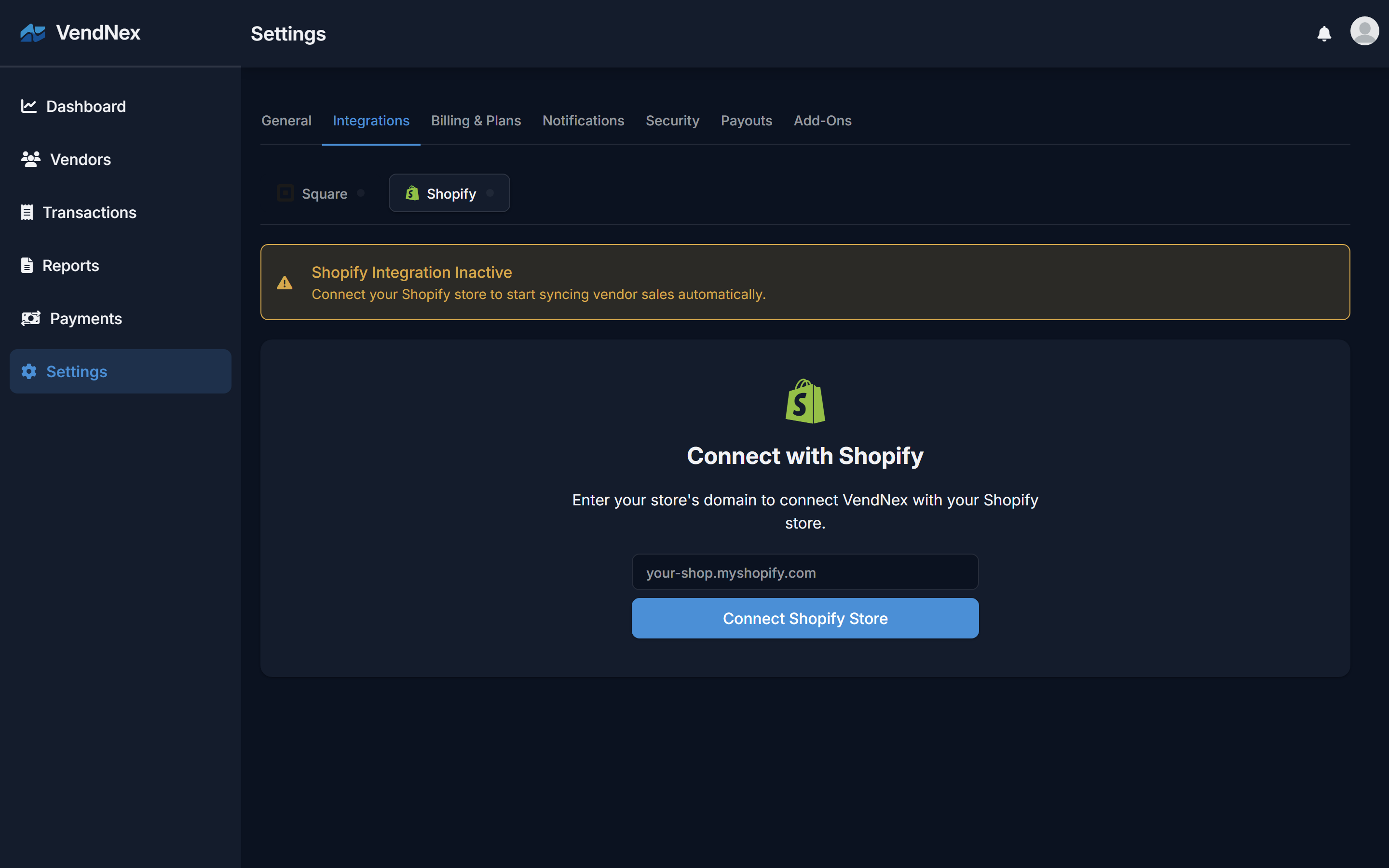
Unlike Square, Shopify doesn't have one shared sign-in page for every store — VendNex needs to know which store to connect to first. Enter your store's domain (the your-shop.myshopify.com address, not a custom domain if you have one) and click Connect Shopify Store. You'll be sent to Shopify to sign in and approve the connection, then returned to VendNex.
What VendNex asks for
VendNex requests these permissions from Shopify:
- Products (read and write) — reads your catalog so sales can be matched to vendors, and creates new items when you approve a vendor's item submission
- Orders (read) — completed sales
- Locations (read) — your store's location(s)
Outside of creating a product you've explicitly approved from a vendor's submission, VendNex never changes your catalog or modifies orders.
How order syncing works
Shopify pushes orders to VendNex the moment they're paid, cancelled, or refunded, rather than VendNex checking in on a schedule the way it does with Square. Once you're connected there's nothing else to set up — a new sale for an item assigned to a vendor shows up on their dashboard within moments.
Assigning products or whole collections to a vendor works the same way it does for Square — see Assigning items and categories.
If the connection expires
Shopify access tokens periodically expire and are renewed automatically in the background — you won't normally notice this happening. If Shopify ever revokes access outright (for example, if you change your store's app permissions), you'll see a banner asking you to reconnect. Click through it, sign in again, and approve the connection. Previously synced sales stay in your account either way.