Your assigned items
See which products are tracked to you.
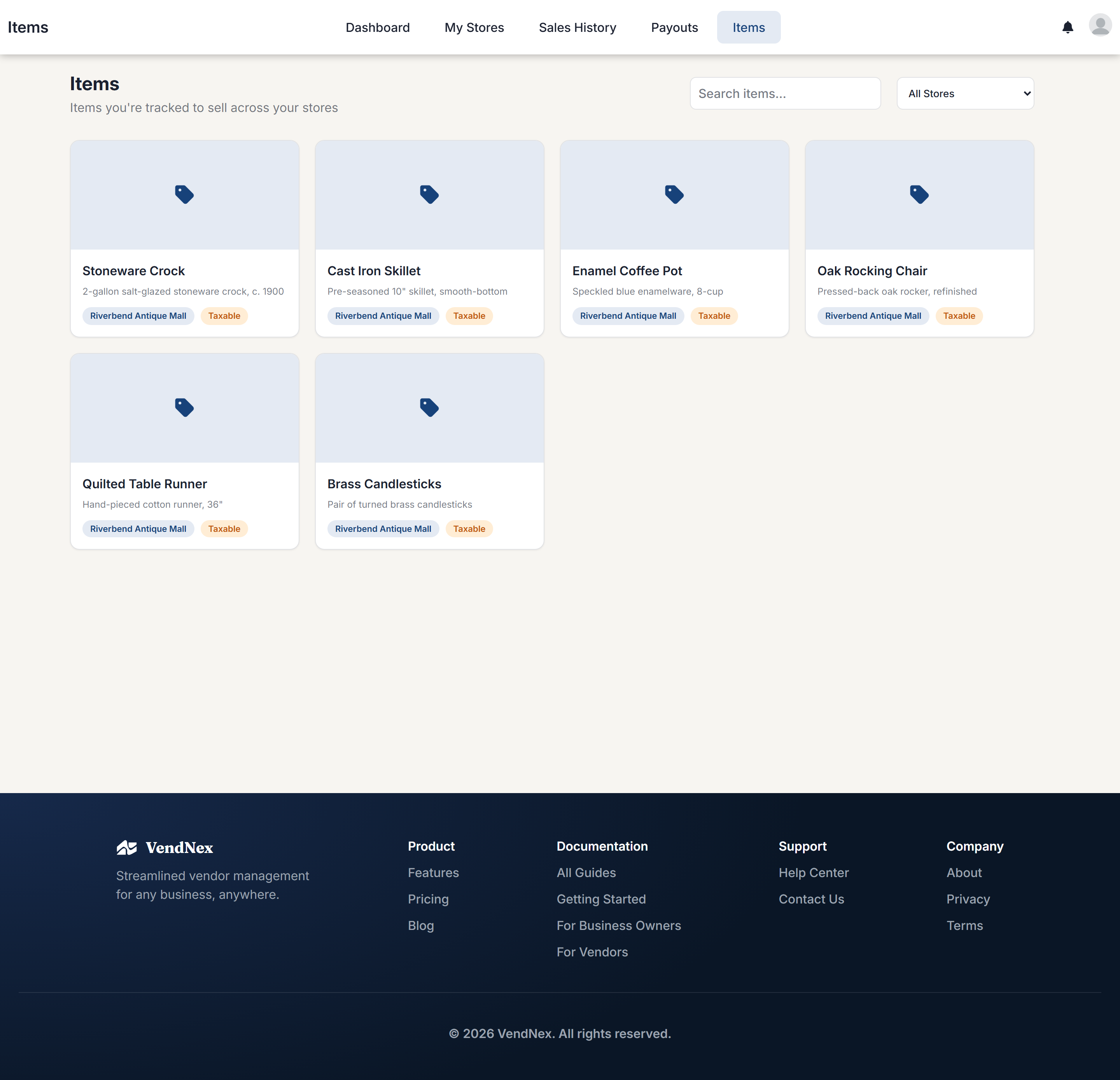
The Items page shows the products the shop has assigned to your vendor code — the items whose sales count as yours.
Two ways an item ends up here
A shop can attribute sales to you either by assigning you individual items, or by assigning you an entire category. Both show up on this page.
Items you got through a category are marked with a small via category tag, alongside the category's name. That tag is just telling you why the item is yours — it doesn't affect how sales or payouts are calculated. Everything is treated the same once it sells.
Because category membership is stored in your shop's Square catalog rather than in VendNex, this page reads the current contents of those categories directly from Square. If the shop adds a new product to a category you've been assigned, it appears here automatically — nobody has to assign it to you by hand.
If the page is empty
An empty Items page means the shop hasn't assigned you any items or categories yet. If sales are still showing up in your history, that's worth raising with them — something may be tracking under a different vendor code.
One exception: if your shop doesn't use Square at all and records sales by hand, there's no catalog to read from, so this page can be empty while your sales track perfectly well.
Who controls this
Item and category assignment is done by the shop owner. You can see what's assigned but can't change it yourself.
Submitting your own items
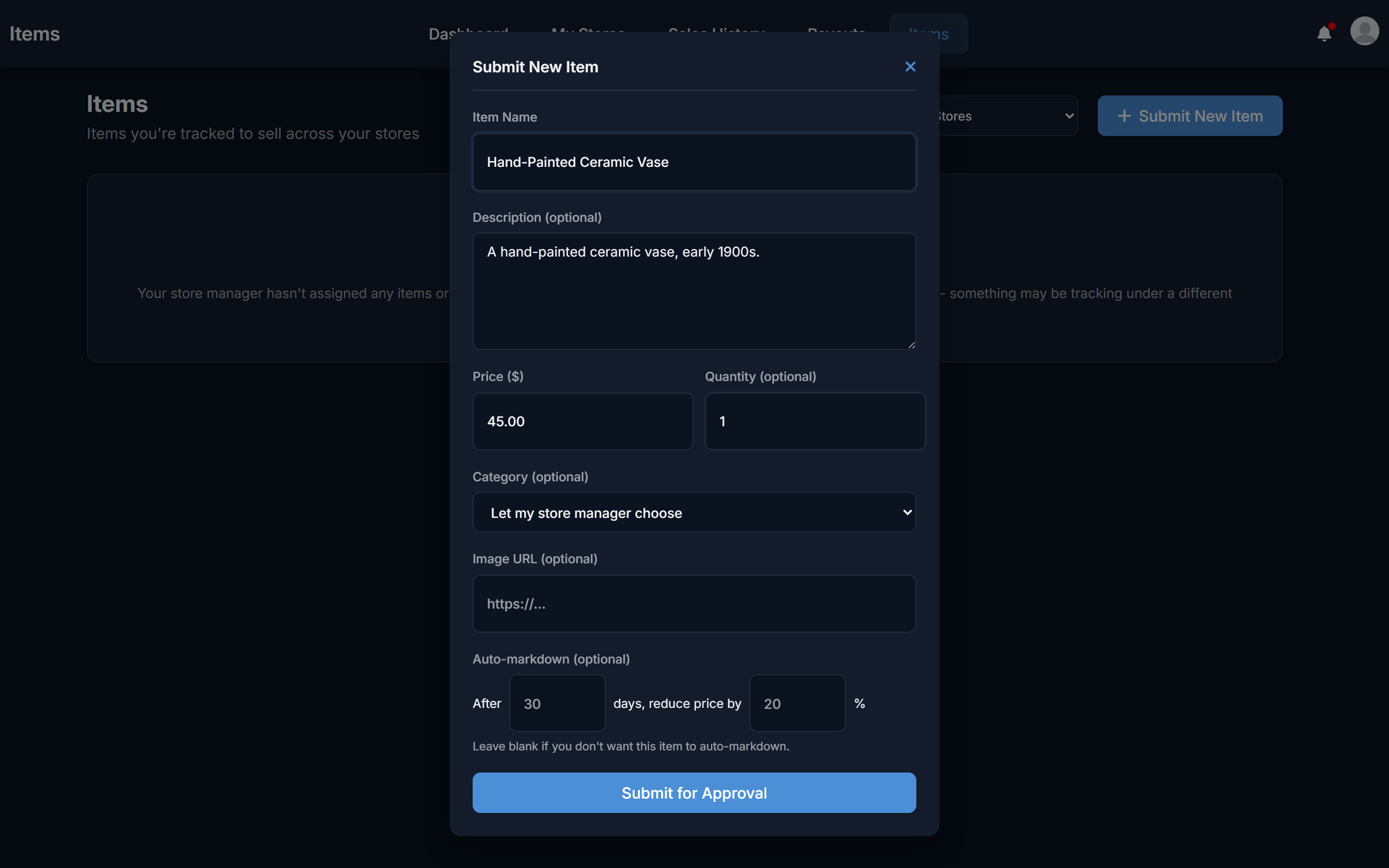
If your shop manager hasn't listed your products yet — or you've picked up something new — you don't have to wait for them to enter it. Click Submit New Item on this page, fill in the name, description, price, quantity, and (if you'd like) a category, and send it in.
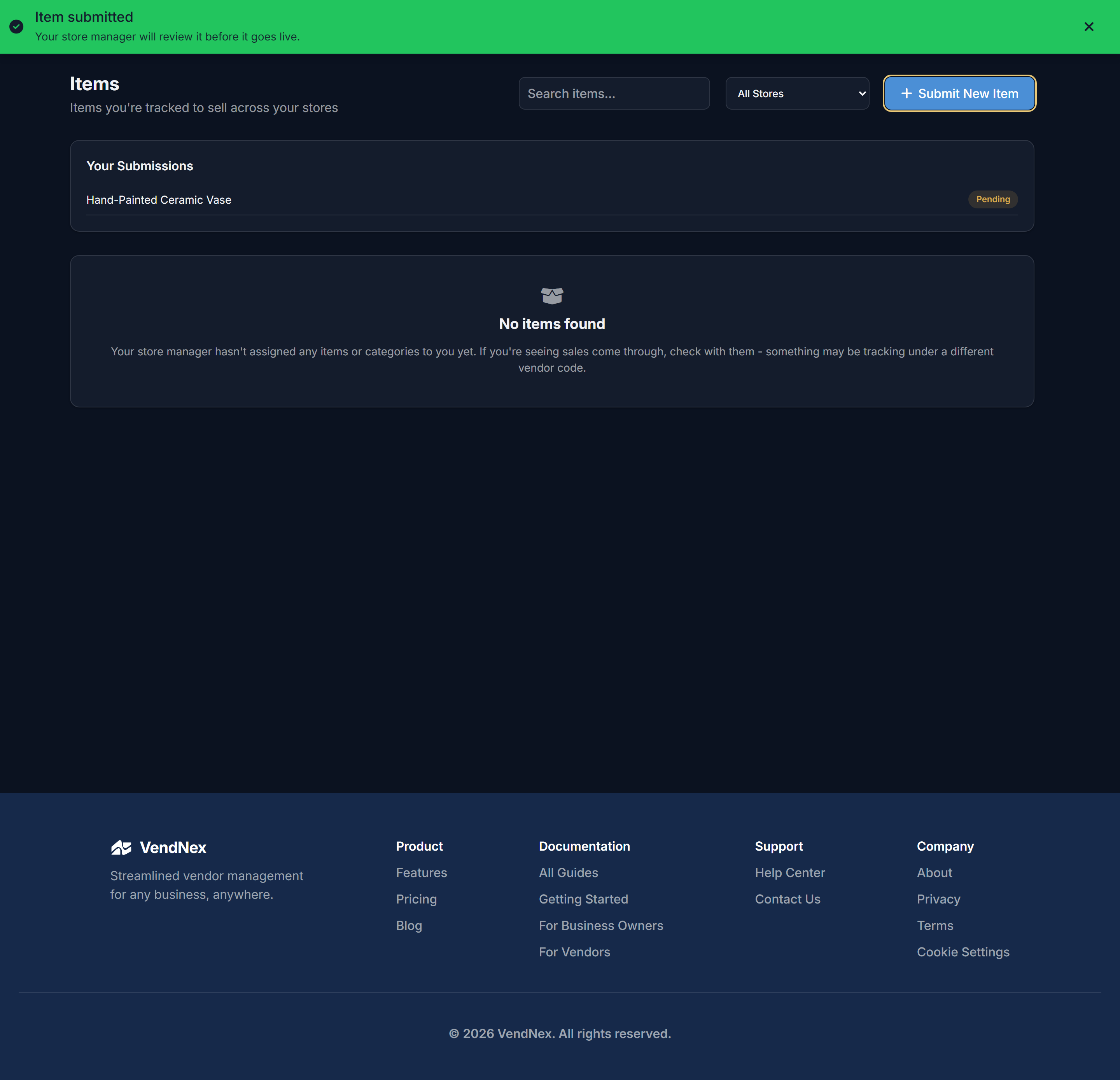
Your submission shows up under Your Submissions marked Pending until your shop manager reviews it.
Once they approve it, it's created for real in their store and moves onto this page like any other assigned item. If they decline it, you'll see why.
If the button is disabled
Item submissions need your shop to have Square or Shopify connected — that's where the approved item actually gets created. If your shop tracks sales manually with no connected store, you'll see a message explaining that submissions aren't available yet. Nothing is lost; just check with your shop manager.