Two-factor authentication
Add a 6-digit code from an authenticator app to your sign-in. Optional, for owners and vendors.
Two-factor authentication (2FA) adds a second step when you sign in. After your password, VendNex asks for a 6-digit code from an authenticator app on your phone, so someone who learns your password still can't get into your account.
It's optional. Nobody has to turn it on, and it works the same way for shop owners and vendors.
What you need
An authenticator app on your phone. Google Authenticator, Microsoft Authenticator, Authy, 1Password, and Bitwarden all work, as does any app that supports time-based one-time codes.
Turn it on
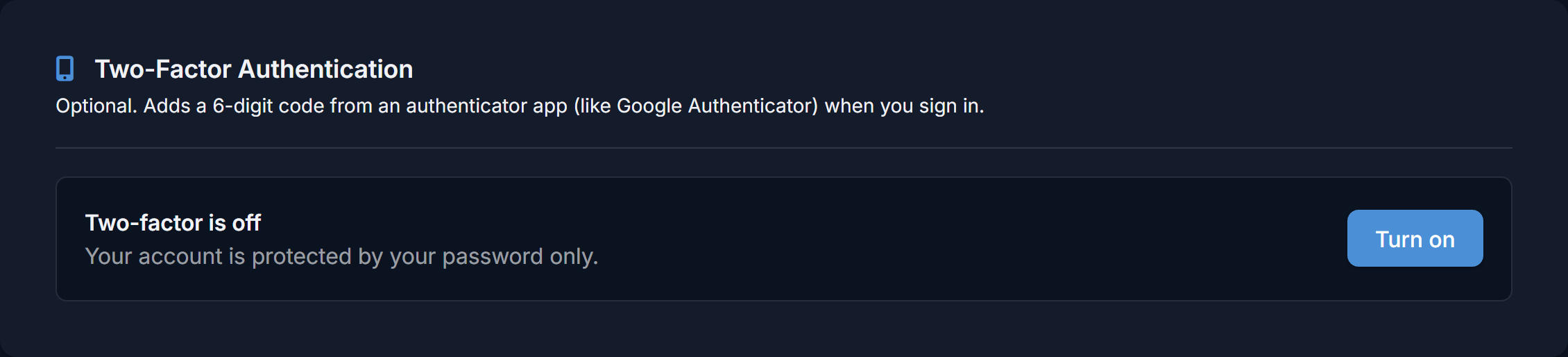
- Go to Settings → Security and find Two-Factor Authentication. Click Turn on.
- Enter your account password to continue.
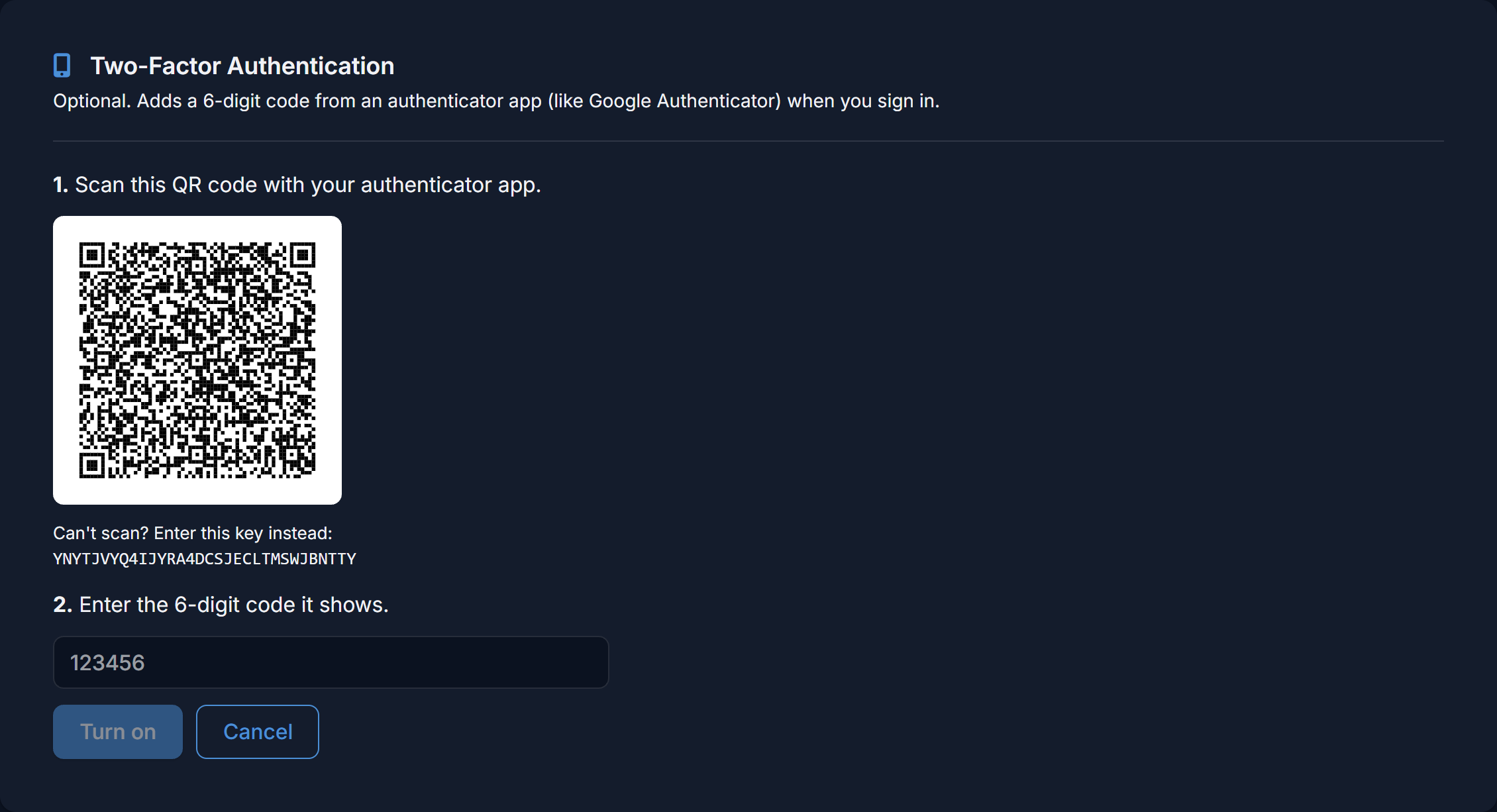
- Scan the QR code with your authenticator app. If you can't scan it, choose the app's option to enter a setup key and type in the key shown under the code.
- Type the 6-digit code your app now shows and click Turn on.
- Save your recovery codes (see below), tick I have saved these codes, and click Done.
Turning it on signs you out of every other device. Each of them will need your password and a code the next time you sign in.
Recovery codes
When you turn 2FA on, VendNex shows you ten recovery codes. They're your way back in if you lose your phone.
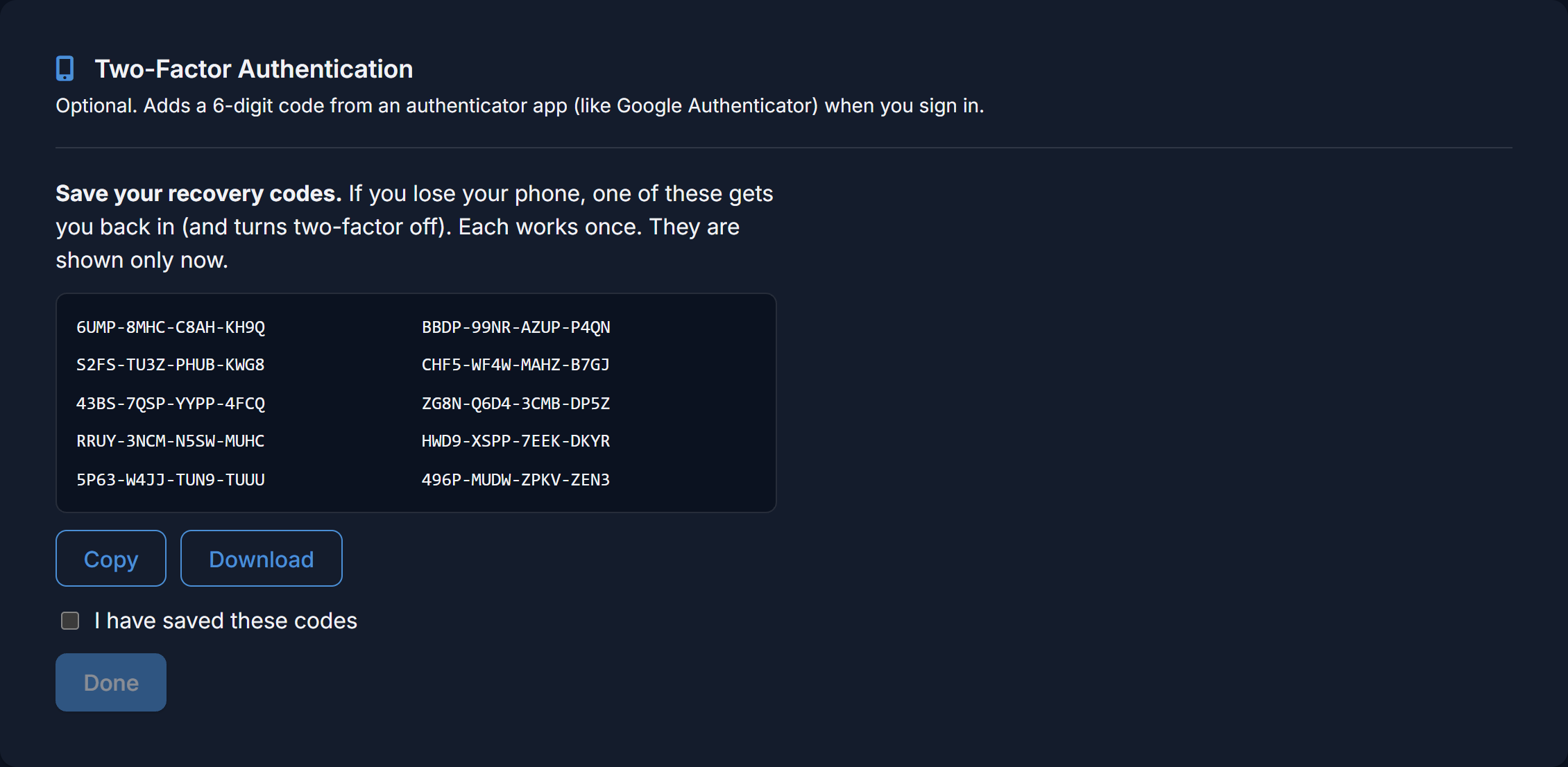
- Each code works once, and they're shown only this one time. Save them in a password manager, or print them and keep the page somewhere safe.
- Don't keep them only on the phone that has your authenticator app.
- Capital letters and dashes don't matter when you type one in.
Signing in with 2FA
Sign in as usual with your email and password. VendNex then asks for the 6-digit code from your app.
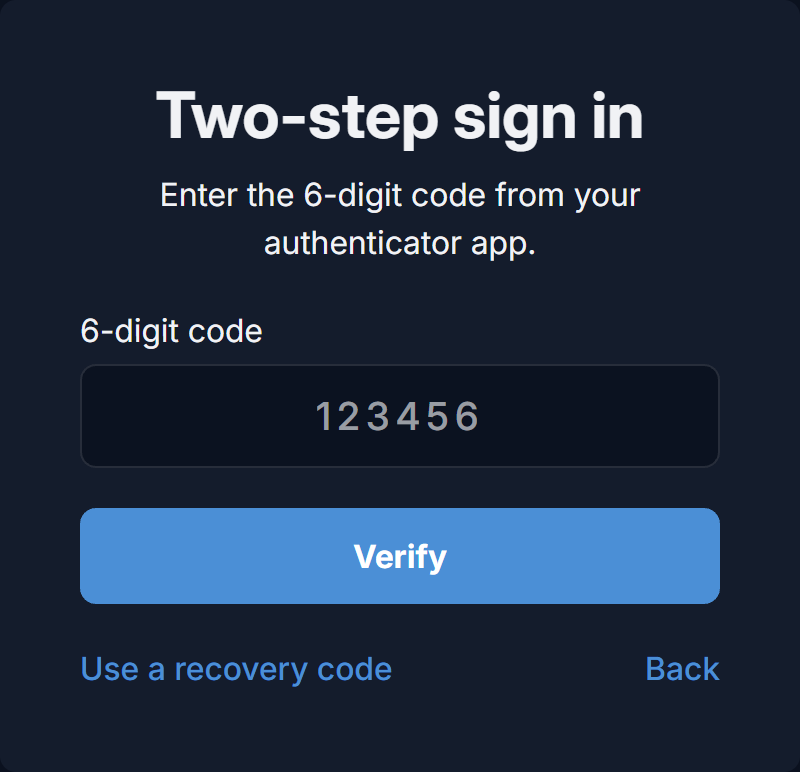
Codes change every 30 seconds. If one is rejected, wait for the next one and try again, and check that your phone's clock is set to update automatically. After five wrong codes in a row, sign-in is paused for 15 minutes.
If you lose your phone
On the code step, click Use a recovery code and enter one of your saved codes. You'll be signed in, and two-factor authentication will be turned off for your account, because the phone it was tied to is gone. Once you have a new phone, turn it on again in Settings → Security. That also gives you a fresh set of recovery codes.
If you've lost both your phone and your recovery codes, contact support@vendnex.com from the email address on your account. We'll need to confirm it's really you before we can turn 2FA off.
Get new recovery codes
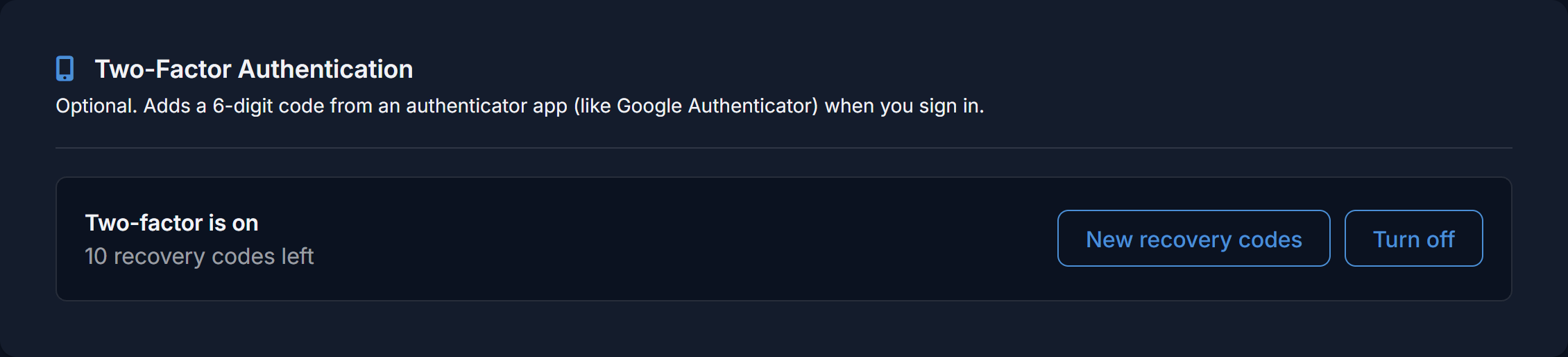
Running low, or think someone saw your codes? Go to Settings → Security and click New recovery codes. You'll need your password and a current 6-digit code. The old codes stop working straight away.
Turn it off
Click Turn off in the same place. You'll need your password and either a current 6-digit code or one of your recovery codes. Other devices are signed out when you do.
Email notices
We email the address on your account whenever 2FA is turned on, turned off, or a recovery code is used to sign in. Each email says when it happened and from what device. If it wasn't you, sign in and change your password right away.
Common questions
Can I get the code by text message? Not at the moment. An authenticator app is more secure than text messages, and it works without phone signal.
Do I need a code on every device? Yes. Any time you sign in on a new browser or device, or after signing out, you'll be asked for a code.
Will it affect my vendors or my shop owner? No. It only applies to your own sign-in.