Reviewing vendor item submissions
Let vendors submit their own items instead of entering them yourself.
Instead of you entering every vendor's items into Square or Shopify by hand, vendors can submit items themselves from their own portal. You just review and approve — nothing on your end until then.
Where submissions show up
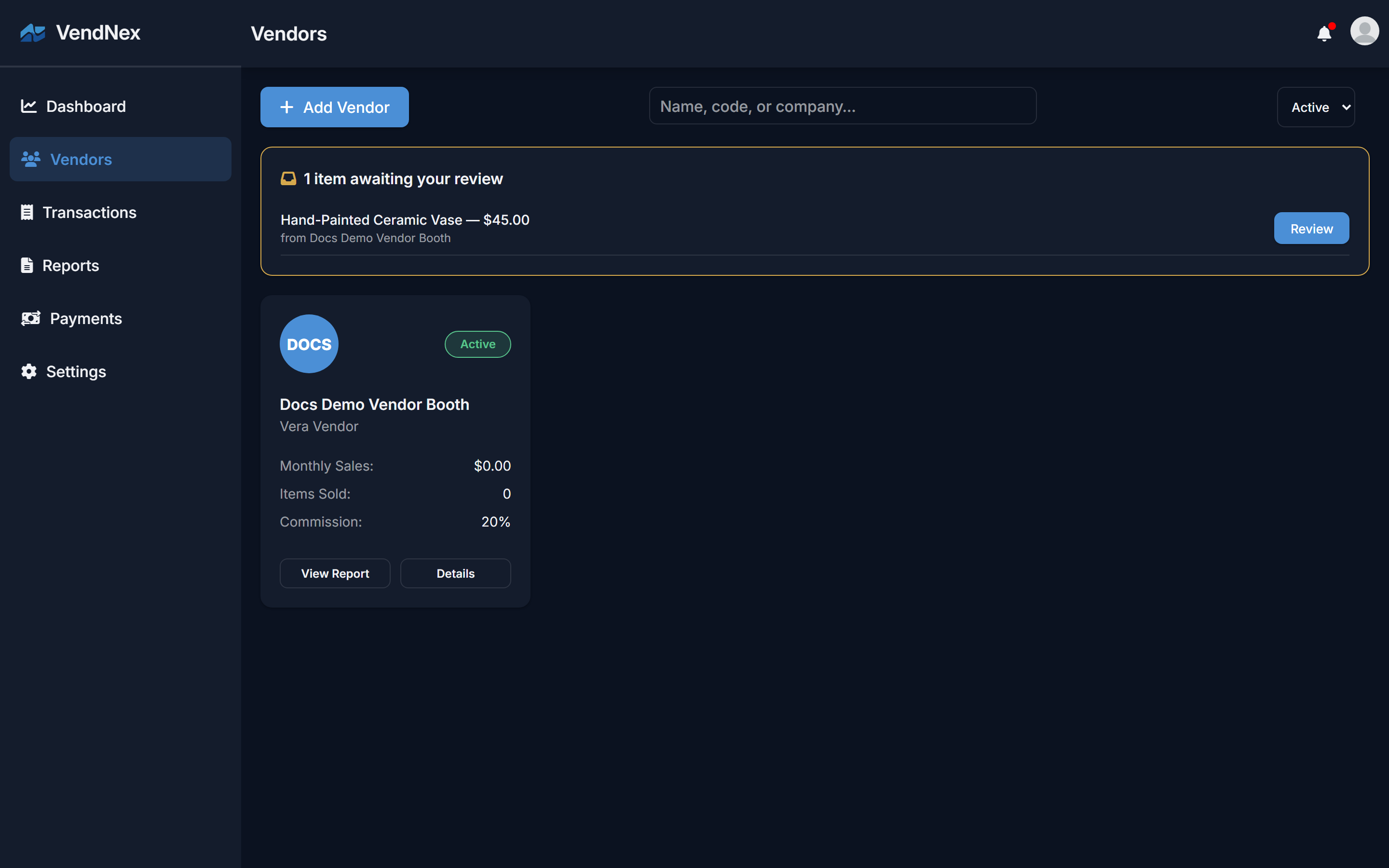
Open Vendors. If anything is waiting, you'll see a banner at the top listing every pending submission across all your vendors.
Reviewing one
Click Review on a submission to see the full details — name, description, price, quantity, and which vendor it came from.

Pick a category (or accept the one the vendor suggested) and click Approve & Create. This creates the item directly in your connected Square or Shopify catalog — from that point on, it's a normal catalog item, indistinguishable from one you added yourself. Click Decline instead to reject it; you can leave a reason the vendor will see.
You need Square or Shopify connected
Approving a submission creates a real item in your catalog, so this only works once you've connected Square or Shopify (see Connecting your Square account or Connecting your Shopify store). If you haven't connected either yet, vendors will see a notice in their portal explaining that submissions aren't available until you do, so nothing gets stuck in a review queue that can never be approved.