Connecting to your POS
Link Square so sales are pulled in automatically instead of being entered by hand.
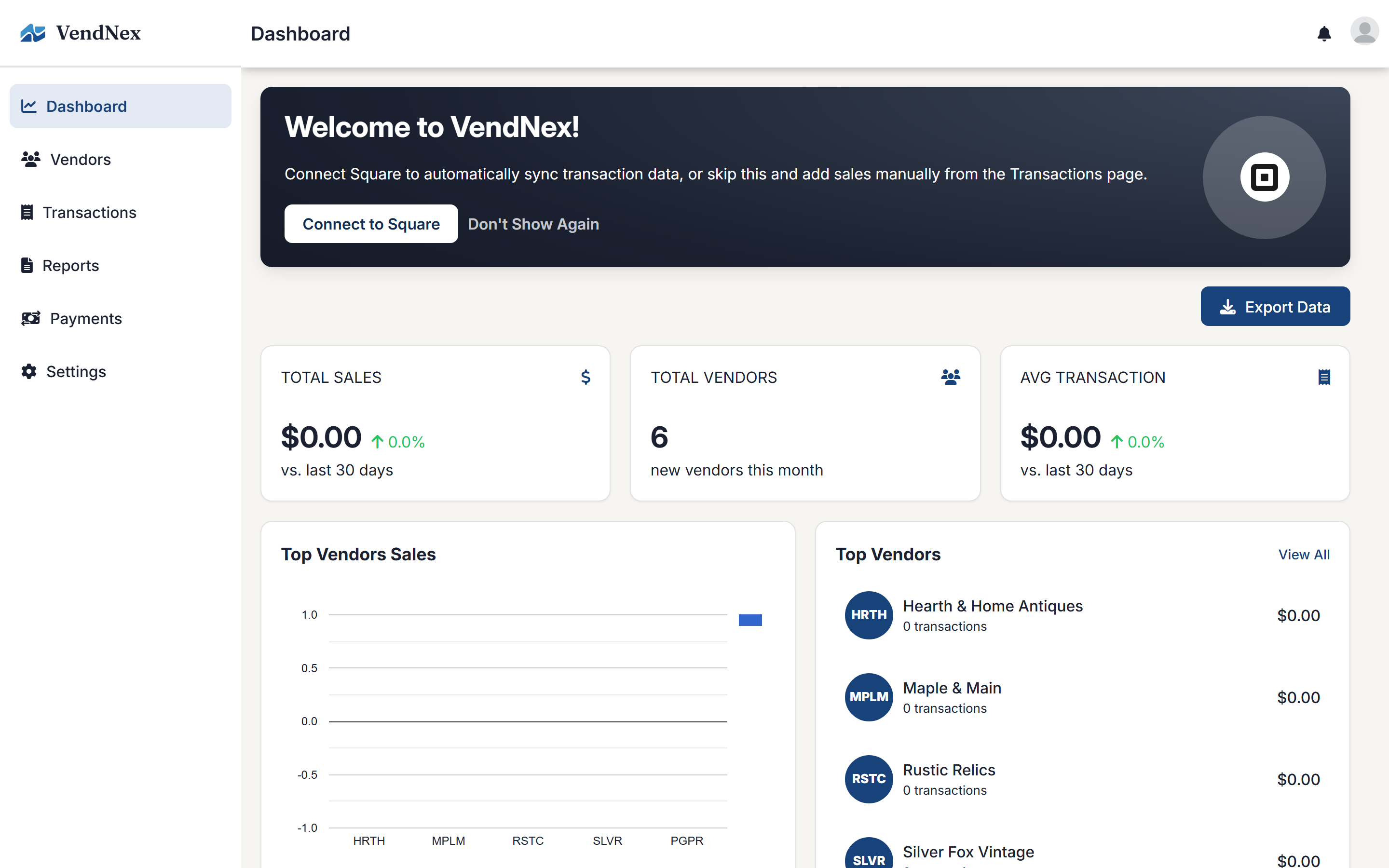
Connecting Square is what makes VendNex mostly hands-off. Once it's linked, completed sales are pulled in, matched to the right vendor, and included in reports without you typing anything.
Sell through Shopify instead? See Connecting your Shopify store — a business connects either Square or Shopify, not both at once.
How to connect
Go to Settings → Integrations, choose Square, and click Connect. You'll be sent to sign in and approve the connection, then returned to VendNex.
What VendNex asks for
VendNex requests these permissions from Square:
- Merchant profile — your business name and locations
- Items (read and write) — reads your catalog so sales can be matched to vendors, and creates new items when you approve a vendor's item submission
- Orders — completed sales
- Payments — payment records tied to those orders
Outside of creating an item you've explicitly approved from a vendor's submission, VendNex never changes your catalog, refunds payments, or modifies orders.
The first sync takes a few minutes
The first time you connect — or after a long gap — VendNex pulls up to 90 days of history. That can take a couple of minutes, and you'll see a banner across the top of the dashboard while it runs. You can keep using the app; it finishes in the background.
If the connection expires
Square access tokens expire, and permissions can be revoked from the Square side. If that happens you'll see a red banner asking you to reconnect. Click Reconnect Square and sign in again. Previously synced sales stay in your account — reconnecting just resumes new data coming in.